







Bill your veterinary services directly according to GOT — no external tables
Today we’ve released one of the most requested features for veterinary practices in TheraTap: billing according to GOT.
From now on you can create invoices directly according to the official German Veterinary Fee Schedule (GOT, version dated 22 November 2022) — without external tables, without copy-paste, without typos.
What does billing according to GOT mean?
The GOT regulates minimum and maximum fees for veterinary services in Germany. Each service has a simple rate (1×) that you can increase to 2× or 3× depending on effort and difficulty — in emergency service even up to 4×.
Anyone working as a veterinarian is required to follow this fee schedule. Until now this was possible manually in TheraTap — from today it takes one click.
What’s new?
1. Built-in service catalog with search
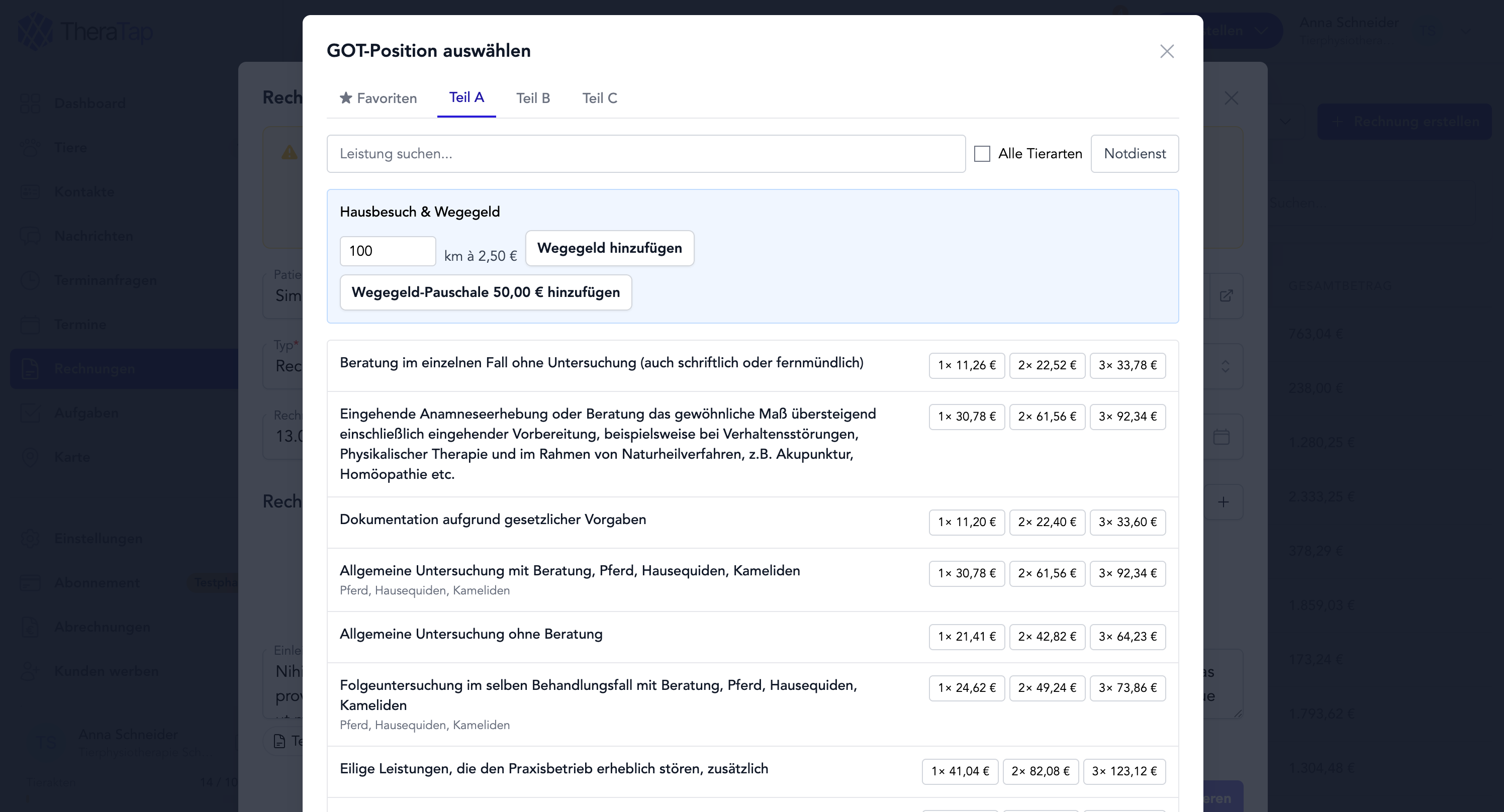
In the invoice modal, click “Add GOT item” and you’ll immediately see the complete catalog with all services from parts A, B, and C of the GOT — separated by tabs, with full-text search and automatic species filter based on the patient.
2. Factor selection with one click
Per line item you choose the factor (1×, 2×, 3× — in emergency service 2×, 3×, 4×). TheraTap automatically calculates the price and adds the item as plain text with a factor note to your invoice.
3. Emergency service mode
A toggle in the picker enables emergency service mode: you’ll see the higher factors and can add your configured emergency surcharge (default €50 net) with one click.
4. Travel fees directly in the picker
Enter the kilometers driven — TheraTap multiplies by your configured per-kilometer rate and adds the line to the invoice. Or use a flat travel fee per visit.
5. Favorites for your most common services
Services you bill frequently can be marked as favorites — they appear as their own tab at the top of the picker and are shared across the team.
6. Protected against GOT amendments
Every GOT item is saved as a snapshot at the time the invoice is created. Even if the GOT is amended later, your existing invoices remain unchanged — important for legally compliant bookkeeping and DATEV export.
How to bill according to GOT
- Open Settings → Billing → Fee schedule
- Enable the “GOT mode” toggle
- Optionally enter travel fees (€/km or flat rate) and emergency surcharge
- Save
From the next invoice modal you’ll see the “Add GOT item” button — and you can get started.
Availability
Access to the fee schedule (GOT) is included at no extra cost in all plans.
Where to learn more
- Feature overview: billing according to GOT — all details with screenshots and FAQ
- Documentation: billing according to GOT step by step — guide for daily use
Questions or feedback? Send us a message — we’d love to hear from you!