







Protect your TheraTap account even better – with an authenticator app or a passwordless passkey
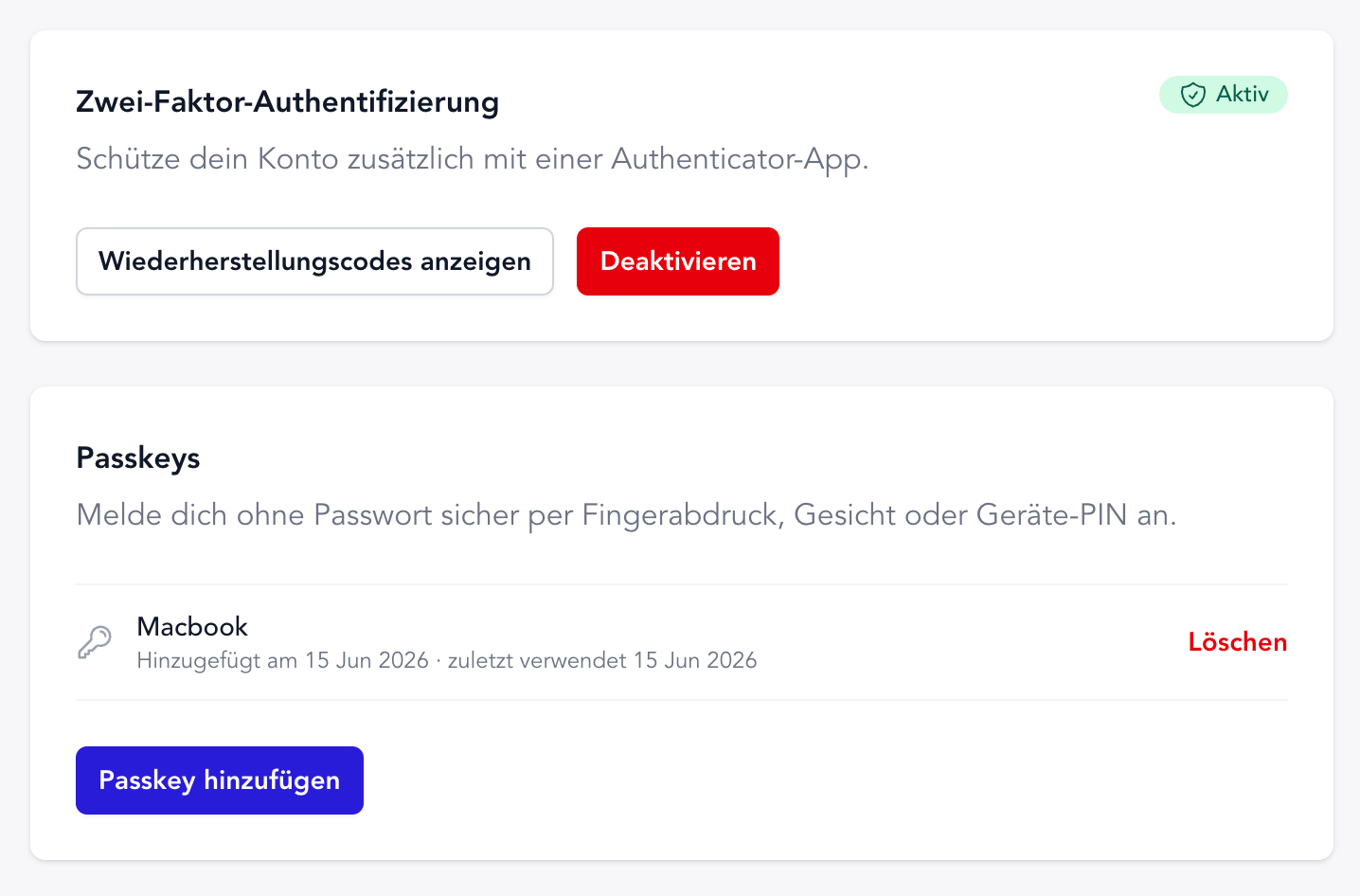
Your TheraTap account holds sensitive data – patient records, findings, invoices. To protect that account even better, TheraTap now offers two-factor authentication and passkeys. Both are optional and set up in just a few seconds.
Two-factor authentication (2FA)
With 2FA, your password alone is no longer enough. When signing in, you also enter a 6-digit code from an authenticator app – such as Google Authenticator, Microsoft Authenticator or 1Password.
How to enable it:
- Settings → Security → Enable
- Scan the QR code with your authenticator app
- Enter the displayed 6-digit code
- Save your recovery codes somewhere safe
The recovery codes are your emergency access – if you ever lose your phone, you can still get into your account.
Passkeys: sign in without a password
Even more convenient are passkeys. Instead of typing a password, you confirm the sign-in with your device’s unlock method – Touch ID, Face ID, Windows Hello or your phone’s PIN.
Passkeys are not only faster but also phishing-resistant: there is no password that could accidentally be entered on a fake site.
You add a passkey under Settings → Security → Add passkey. You can register multiple devices and then sign in on the login page with “Sign in with a passkey” – no password needed.
You decide
2FA and passkeys can be used independently of each other and removed at any time. Choose just one method or combine both – whatever fits your daily work.
You can find a detailed step-by-step guide in the documentation on two-factor & passkeys.